
If you have ever needed secure browsing on public WiFi networks, bypassed any restrictions, or routed your network traffic via remote computer without any additional software installed, chances are you’ve heard about “SSH SOCKS proxy“.
And here comes the best part – no prior knowledge in network engineering is required in order to configure your proxy server. You only require an SSH client which is usually already installed on all machines as a default and you will have your proxy set up in under 2 minutes.
In this tutorial, we will discuss the following things about Socks Proxy: What is a Socks Proxy? How Socks Proxy and SSH Work? Configuration of Socks Proxy on Windows, Mac OS and Linux.
What is a SOCKS Proxy?
First of all, let us know what a socks proxy is.
SOCKS stands for “Socket Secure”. It is a networking protocol, which makes connection between client and server using a proxy server. The SOCKS protocol is different from an ordinary HTTP proxy in its ability to handle any kind of traffic – not only web but also email, torrents, and gaming.
Here are two types:
- SOCKS4 – old and limited to TCP, without authentication.
- SOCKS5 – new type with support for both TCP and UDP and authentication. The most popular option.
When users inquire about “what is socks proxy” in relation to SSH, they normally imply the following: SSH will create a temporary tunnel through which your machine will connect to the server using SOCKS5 protocol.
What Is an SSH SOCKS Proxy?
A SOCKS proxy with SSH is comprised of the following components:
- SSH – secure shell protocol, which enables remote access to a server.
- SOCKS proxy – a means of rerouting your internet traffic through a remote server.
Once configured, your SSH client creates a secure connection to the remote server. Any application pointed at that tunnel, your browser included, sends its traffic through the encrypted connection first, and the remote server forwards it on to the actual destination.
This is sometimes called SSH dynamic port forwarding, because the SSH client decides where to send traffic based on the application’s request in the moment, rather than forwarding everything to one fixed destination.
Why This Matters
Instead of your traffic going straight from your laptop to a website, it goes:
Your laptop → Encrypted SSH tunnel → Remote server → Website
The website only sees the remote server’s IP address, not yours. And because the tunnel is encrypted, anyone snooping on your local network, on public Wi-Fi say, can’t read your traffic.
Advantages of Implementing SSH SOCKS Proxy
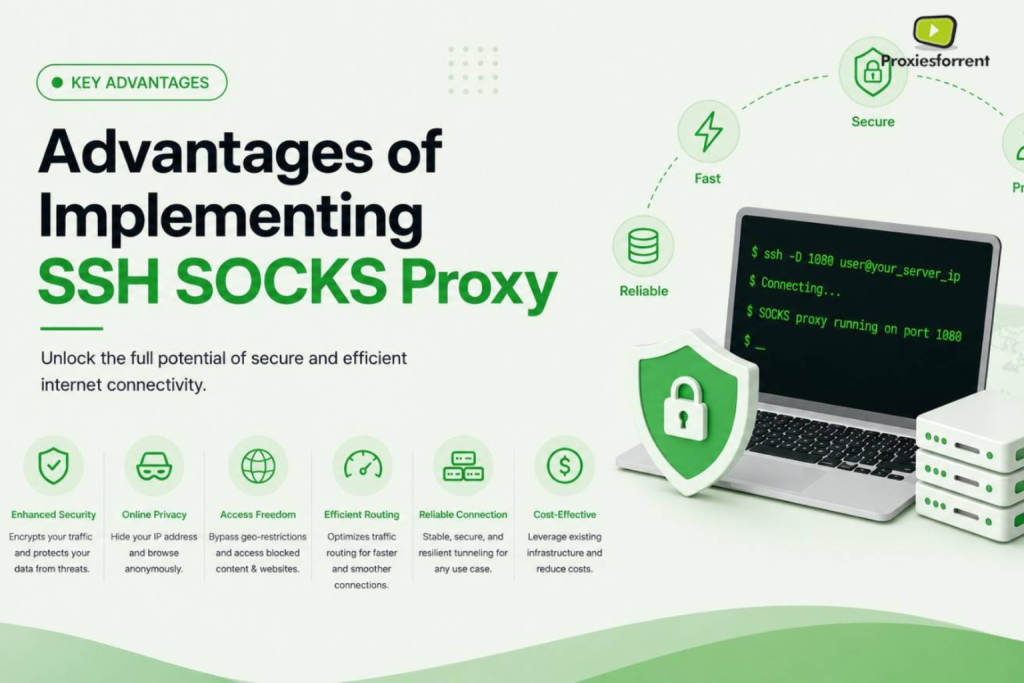
- No extra software. Almost all the Operating Systems include an SSH client within themselves.
- Strong encryption. The use of industry-standard encryption in SSH ensures privacy of your information.
- Free with an existing server. If you already rent a VPS or RDP, you can use it as your proxy at no added cost.
- Bypass network restrictions. Also useful if your own local network or ISP or even region restricts you from visiting the website. When you use public wireless networks, privacy becomes an issue. It ensures that your internet connection is encrypted in an untrusted environment.
- Full control. You’re the one running the server, not a third-party proxy provider that might be logging your activity.
SSH SOCKS Proxy Configuration Characteristics
- Compatibility is guaranteed by these operating systems: Windows, Mac OS X, and Linux.
- Uses SOCKS5 with authentication
- No need to open extra firewall ports beyond standard SSH (port 22)
- Can pair with browser extensions like FoxyProxy for automatic switching
- Compatible with most apps that support proxy configuration
Preparations Before You Start
- Remote server that allows SSH connection (either a VPS or RDP)
- IP address of your server
- Login name for SSH access (login ID) & login password
- SSH Client (Already installed on the terminal of Mac/Linux; use either PuTTY or Windows Terminal on Windows)
Should you lack a server at the moment, a proxy server rental service such as Proxies For Rent is perfect for this purpose. A dedicated proxy server gives you a unique IP address that can be easily converted into an SSH SOCKS proxy in just minutes.
How to Set Up an SSH SOCKS Proxy? Step by Step Guide
Step 1. Configuring SSH SOCKS Proxy on macOS and Linux
Both OSs give you a terminal and an SSH client from the very start, so you won’t have to install anything extra.
- Launch your Terminal application.
- Apply the following code (your criteria can vary): ssh -D 1080 -C -N username@your-server-ip
What each part does:
- -D 1080: makes a SOCKS proxy at port 1080 locally (you can specify a different one if you wish)
- -C: compresses data for faster performance
- -N: tells SSH not to run a remote command, since you’re only using it for tunneling
- username@your-server-ip: your SSH login details
- Enter your password (or it connects automatically if you’re using an SSH key).
- Leave this terminal window open. The tunnel stays active as long as the session is running.
Step 2: Set Up an SSH SOCKS Proxy on Windows
There are two easy ways for the Windows system.
The OpenSSH software is an open-source software that can be used for Windows 10 & Windows 11.
- The OpenSSH client can be used for free in Windows 10 & Windows 11.The OpenSSH client can be used free of cost in Windows 10 & Windows 11. Start Windows Terminal/PowerShell.
- Use the below command:
ssh -D 1080 -C -N username@your-server-ip
Option B: PuTTY
- A pop up window will ask for PuTTY, wherein on the section labeled “Host Name,” you must type the IP address of the server.
- Go to Connection -> SSH -> Tunnels.
- Enter “1080” in Source Port.
- Choose Dynamic and click Add.
- Now, go to the Sessions tab and click on Open to create the link.
Step 3: Configuring Your Web Browser/Application for the Tunneling
With the tunnel set up, you will now configure your web browser/application for the tunneling.
For Firefox:
- Go to Settings > Network Settings.
- Select Manual proxy configuration.
- SOCKS Host: Input 127.0.0.1 on port 1080.
- Use “SOCKS v5.”
- Select “Proxy DNS when using SOCKS v5” to avoid any DNS leaks.
For Chrome:
- Chrome does not have any default SOCKS proxy. Or you run it with the help of –proxy-server flag: google-chrome –proxy-server=”socks5://127.0.0.1:1080″
- Some other choices that might be taken into consideration include: The use of browser plug in by the user himself like FoxyProxy.
Step 4: Testing the Connection
Open your browser and check a “what is my IP” website. In case the site shows your remote server’s IP address and not yours, then your proxy is working.
Mistakes to Avoid
- Forgetting to check “Proxy DNS.” Otherwise, the DNS queries will be sent out of the tunnel, revealing which websites you visit despite your traffic being proxied.
- Closing the terminal window. The tunnel only works while the SSH session is active. Close it, and the proxy disconnects.
- Using a low, commonly blocked port. Certain networks restrict connections using nonstandard ports. In case you are having any difficulties connecting to our servers, kindly use the following ports 1080 and 8080.
- Weak server security. In case of password-based authentication, ensure that you have a strong password or even better switch to SSH key-based authentication.
SSH SOCKS Proxy vs Other Proxy Types
Feature | SSH SOCKS Proxy | HTTP Proxy | VPN |
Encryption | Yes (SSH encryption) | Usually no | Yes |
Protocol support | Almost all protocols | Web traffic only | All traffic |
Setup difficulty | Moderate (one command) | Easy | Easy (with app) |
Extra software needed | No (built-in SSH) | Sometimes | Usually yes |
Cost | Server cost only | Varies | Subscription |
Full traffic routing | App-by-app | App-by-app | System-wide |
An SSH SOCKS proxy provides a good balance: It is more flexible and secure compared to an HTTP proxy and does not require installation of any VPN software, although it does require access to a server.
Maintaining Your SSH SOCKS Proxy Tunnel
Idle terminal sessions tend to time out. In order to prevent that from breaking the link, set up keep alive in your SSH config file (~/.ssh/config on macOS/Linux):
Host your-server-ip
ServerAliveInterval 60
ServerAliveCountMax 3
It guarantees that the ping is received every 60 seconds, failing which, you might end up losing the connection.
Key Takeaways
- The SSH socks proxy redirects your traffic via remote server via SSH tunnel.
- This utilizes the feature of SSH dynamic port forwarding (-D switch), and therefore no additional software is required.
- Socks proxy server is a protocol-independent proxy server, which means it works not only for HTTP requests.
- It can be configured by running a single terminal command under macOS/Linux or a few clicks via PuTTY under Windows.
- Do not forget to check “Proxy DNS” option in your browser options in order not to have any DNS leaks.
- When one rents a server or RDP, then they can control the proxy themselves.
FAQ
- How can you use Socks proxy? You should make sure that all your internet traffic is routed through a remote computer since it makes it difficult for any person to track your IP address. With Secure Shell or SSH, it will also enable you to encrypt your internet connection.
- Is an SSH SOCKS proxy free? The SSH protocol is actually free and is installed by default on most operating systems. The only fee comes from the remote server that you are going to tunnel through, e.g. VPS or RDP.
- Does an SSH SOCKS proxy decrease my internet speed? A little, since your traffic takes an extra hop through the remote server and encryption adds some overhead. Most users won’t notice much for browsing, though large downloads may run slower than a direct connection.
- What is the difference between socks and proxy servers through HTTP? The HTTP proxy deals with web traffic (HTTP/HTTPS) alone, while the SOCKS proxy will handle everything from emails to torrent to games. It’s more versatile, but it requires a little bit more setup than HTTP.
- Can I use SSH SOCKS proxy on my phone? Yes, there is software like Termius which is available on both iOS and Android devices that will give you dynamic port forwarding through SSH, but you’ll need to configure your phone’s browser or other apps to use that SOCKS port.
- Is a static IP address required for the remote server? It helps but isn’t strictly required. A static IP makes it easier to reconnect without updating your SSH command each time, which is why many people use a dedicated RDP or VPS with a fixed IP.
- Is SSH SOCKS proxy safer than a free public proxy? Yes, significantly. The free proxies generally either monitor and record your data or display ads to you. In addition, many of them simply don’t use any form of encryption. Having an SSH proxy on a server that you own guarantees both security and anonymity.
- Why do I see my IP address on my browser although all the settings are properly configured? The reasons for this can be either that the browser has not been configured to use the local SOCKS port or there is DNS leakage from the tunnel. You need to make sure that “Proxy DNS when using SOCKS v5” is selected.
Conclusion
Some of the fastest ways of securing yourself as you surf the Internet is setting up an SSH socks proxy that does not demand any installation of other software in your computer. Within seconds, you would be able to turn the entire server into a socks proxy server through one command line. For all those looking to secure your internet activity through public Wi-Fi networks, access restricted region-based content online, or simply get a better understanding of socks proxy technology, the process is quite easy.
If you don’t have a server to tunnel through yet, a reliable proxy provider is worth having. Proxies For Rent offers fast, dedicated proxy servers you can use as the backbone of your own SSH SOCKS proxy, with a private, dedicated IP address and no shared-server risk. Check out proxiesforrent.com to get a server running in minutes and start routing your traffic through your own secure tunnel.